


BIO-D-Panel
- Install brand-new professional batteries: Use exclusively brand-new 1.5V AAA alkaline batteries of INDUSTRIAL grade (e.g., Varta Industrial Pro, Duracell Procell / Industrial). Never mix used cells or use rechargeable batteries.
- Program and test all credentials prior to mounting: Ensure the lock operates properly, and that both PIN codes (Manager PIN, User PIN) and RFID cards (Manager Card, User Card) are configured, tested, and verified at least 3 times on an open cabinet door before physically securing the lock body, connecting the 10 cm ribbon cable, and latching the furniture!
- Understand the Reset consequences before resetting: Before performing a hardware reset or keypad reset, carefully read Section 7 to understand factory reset behavior (all credentials are wiped, factory codes 0000 and 1111 are restored, and the lock reverts to default Public Mode)!
Table of Contents
-
6. Operations & Mode Configuration
- 6.1 Private Mode (Home, Office, Assigned Lockers)
- • Set Lock into Private Mode (Button / PIN)
- • Set Manager Code & Manager Card Manager
- • Set User Code & User Card User
- • Register Delete Card
- 6.2 Public Mode (Gyms, Spa, Shared Lockers)
- • Set Lock into Public Mode (Button / PIN)
- • Set Manager Code & Manager Card Manager
- • Using Guest PIN / Guest Card PIN
- • Register Delete Card
- 6.3 Limited Public Mode (Daytime Open)
- • Set Lock into Limited Public Mode (Button / PIN)
- • Set Manager Code & Manager Card Manager
- • Set User Code & User Card
- • Register Delete Card
- 7. Reset Lock (Button & PIN Methods)
- 8. Essential Operational Guidelines & Best Practices
1. Relative Products
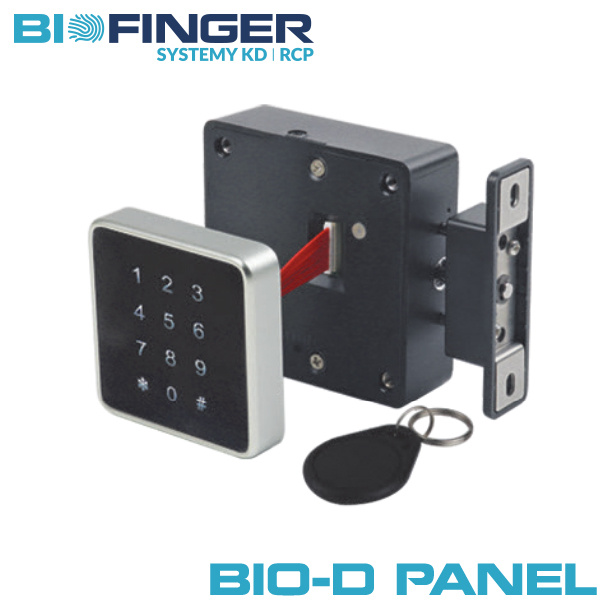
The BIO-D-Panel electronic cabinet lock combines the proven internal BIO-S80A lock body with an external touch code and RFID panel (D-Panel). The lock body architecture supports modular expansion across various front interface panels:
Touch & Keypad Panels
Compatible with external touch code panels (B panel, C panel, D panel, E panel, 64RP panel, 64RP-FM panel) for dual PIN + Card access.
Fingerprint & Reader Panels
Compatible with external biometric fingerprint and proximity sensor panels (F panel Ø30mm, G panel 65mm, 64RF panel Ø64mm, 36SF panel 36mm, 51SF / 51SF-FM panel 51mm).
2. Hardware Overview & Components
Standard Set Contents (Included in Each Package):
-
Electronic Cabinet Lock Assembly: Lock Body (BIO-S80A) + External Touch D-Panel with ~10 cm connection ribbon cable + Spring-Loaded Strike Latch Bolt (Hook A).
※ Standard factory configuration: pre-programmed to operate in Private Mode out-of-the-box. -
Two Pre-Configured Proximity RFID Credentials (13.56 MHz Mifare):
- 1× Manager Proximity Card: Dedicated administrative card
- 1× User Proximity Card: Operational credential for daily unlocking
- Complete Fasteners Set: Precision mounting screws for wood/metal door thickness and front panel installation.
2.1 Lock Body Specification (BIO-S80A)
Material: High-impact ABS polymer housing.
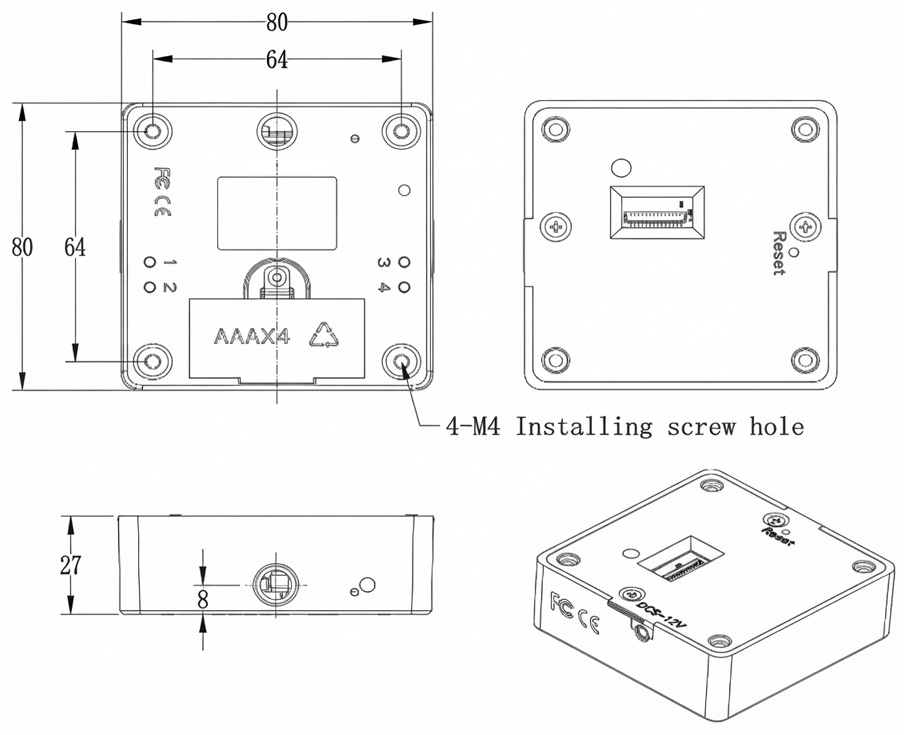
Dimensions: 80 × 80 × 27 mm.
2.2 External Touch D-Panel & Ribbon Cable
Material: Polycarbonate + Acrylic (PC + Acrylic) glossy finish.
Dimensions: 65 × 65 × 13.6 mm.
Connection Ribbon Cable: Integrated multi-wire flat cable, length: approx. 10 cm. Connects the external touch keypad and RFID coil directly to the internal lock body motherboard socket.
2.3 Spring-Loaded Strike Latch Bolt (Hook A, D, E)
Precision-engineered strike hooks designed to accommodate various cabinetry architectures:
- Spring-Loaded Strike Latch Bolt (Hook A): Universal 3D strike latch bolt suitable for both vertical and horizontal installation (standard included in the kit).
- Hook D and Hook E: Specialized strike latches engineered for horizontal installations.
2.4 Proximity Credentials (Mifare 13.56 MHz)
Supports 13.56 MHz Mifare RFID credentials: standard ISO cards, key fobs (teardrop/oval), and silicone wristbands.
2.5 Fasteners & Screws Specification
Hardened installation screws provided for diverse cabinet substrates (hardwood, MDF, MFC, metal) and door thicknesses.
2.6 External Emergency Power Supply
Equipped with an external emergency power input interface. Compatible with external battery boxes or 6V power adapters to provide temporary power through the front panel/lock body if internal batteries are completely depleted.
To guarantee reliable motorized latch operation and keypad responsiveness, only and exclusively install brand-new, fresh alkaline batteries from a professional manufacturer – INDUSTRIAL Grade (e.g., Varta Industrial Pro, Duracell Procell / Industrial, Energizer Industrial).
STRICTLY PROHIBITED:
• NO rechargeable NiMH batteries (1.2V): 4× 1.2V = 4.8V, which triggers false low-voltage warnings immediately.
• NO zinc-carbon consumer batteries: Inadequate peak discharge current for motor drives.
• NO mixing old and new cells: Replace all 4 batteries simultaneously.
3. Product Installation Dimensions
Lock Body Dimensions (BIO-S80A)
- Outer dimensions: 80 mm × 80 mm × 27 mm.
- Mounting screw holes: 4 × M4 holes arranged in a 64 mm × 64 mm square pitch.
- Edge margin: 8 mm from hole centers to outer casing edge.
External D-Panel Dimensions
- Outer dimensions: 65 mm × 65 mm × 13.6 mm.
- Mounting holes: 4 × M4 installing screw holes (pitch 42.0 mm / 30.0 mm).
- Ribbon cable: approx. 10 cm connecting cable.
Hook A Dimensions (Standard)
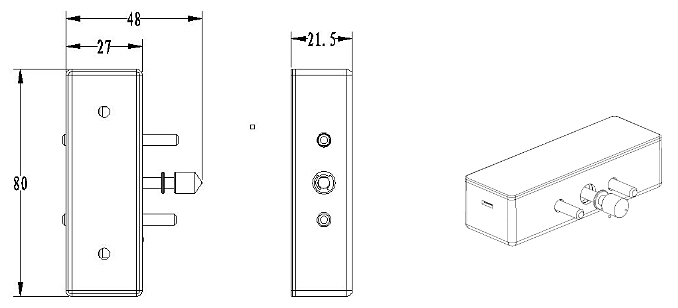
- Outer dimensions: 80 mm (L) × 27 mm (W) × 21.5 mm (H) (10 mm base).
- Mounting screw holes: 2 × Ø4 mm holes with 50 mm pitch.
Hook D & Hook E Dimensions
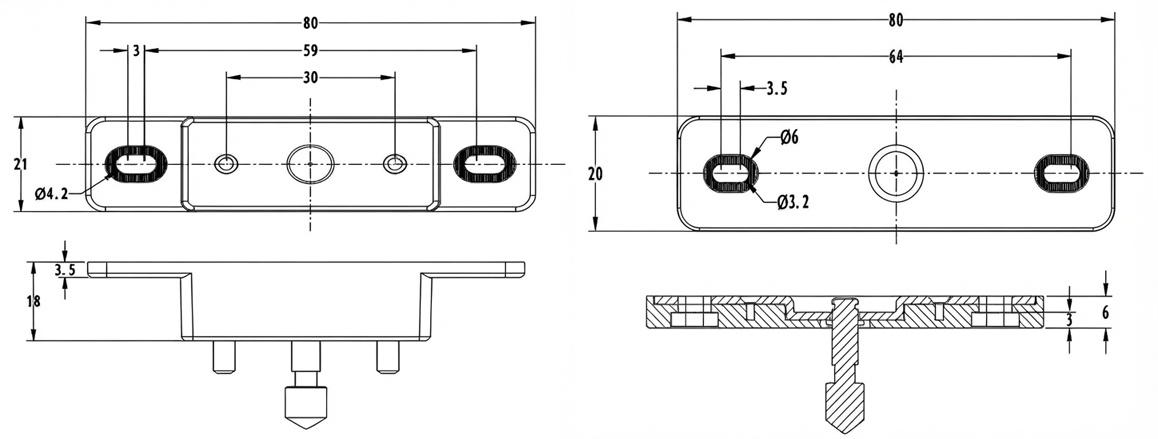
- Hook E: 80 × 21 × 18 mm (pitch 59 mm / 30 mm).
- Hook D: 80 × 20 × 6 mm (pitch 64 mm).
4. Installation Drawings & Assembly
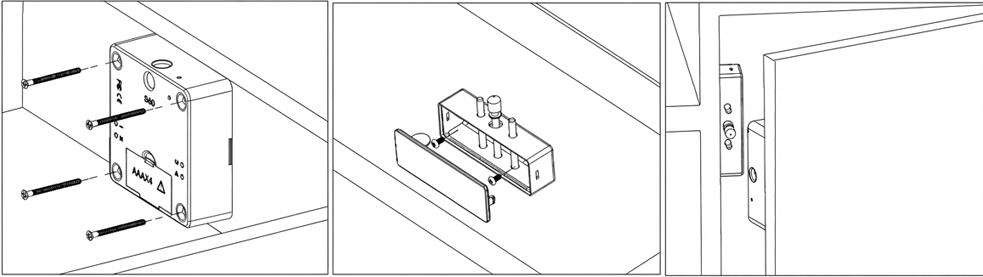
Assembly Procedure: Drill the through-hole in the cabinet door for the ~10 cm ribbon cable and the 4× M4 mounting screws. Connect the ribbon cable securely to the lock body socket. Mount the external D-Panel flush on the door face, and affix the internal lock body to the interior panel. Ensure the spring-loaded strike latch bolt (Hook A) aligns smoothly with the lock latch slot.
5. Operational Parameters & Master Matrix
5.1 Technical Parameters
| Housing Construction | High-impact ABS for lock body shell; Acrylic & Polycarbonate (PC) for external D-Panel |
| Current Consumption | Static standby consumption: < 100 μA Dynamic motorized operation: < 200 mA |
| Operating Voltage & Battery Lifetime |
DC 6V (4 × AAA 1.5V Alkaline INDUSTRIAL Grade) Estimated operational battery life: 6–12 months. Standby capacity: up to 1 year. |
| Environmental Tolerance | Operating temperature: -15°C to +65°C Operating humidity: 10% to 90% RH (non-condensing) |
| Electrostatic Protection (ESD) | Air static discharge: 15 kV | Direct contact discharge: 8 kV |
5.2 Master Alarm & Notification Signal Matrix
Visual and acoustic alerts are rendered directly on the external touch D-Panel and internal sounder:
| Status / Trigger Event | Optical (D-Panel LED) | Acoustic (Buzzer) | System State & Required Action |
|---|---|---|---|
| Standby State | White Backlight | Silent | Touch panel in standby mode awaiting interaction. |
| Valid PIN or Card | Green (1× flash) | 1× short di | Authorized unlock. Motorized latch bolt retracts. |
| Invalid PIN or Card | Red (2× flashes) | 2× short di di | Access denied. Unregistered PIN code or RFID credential. |
| Low Voltage Warning (< 4.5V) | Blue (steady flash) | Double beep di di on each unlock | LOW BATTERY ALERT (< 4.5V): Acoustic & visual alert on every unlock. Functional for ~1,000 cycles, replace batteries immediately. |
| Critical Voltage Failsafe (< 4.0V) | Blue (continuous) | Periodic warning tone | ANTI-LOCKOUT FAILSAFE: Below 4.0V, the latch bolt PREVENTS RE-LOCKING until batteries are replaced. |
| Door Left Open Alarm (> 30s) | Off | Continuous warning for 10s | Cabinet Door Ajar Alert: Sounds in Private Mode if open for > 30s. Toggle with buttons 1+2. |
| Anti-Tamper Lockout (5× wrong attempts) | Red (continuous) | 5× rapid beeps di di di di di | 5-MINUTE LOCKOUT: Keypad disabled for 5 minutes. Enter Manager Code or present Manager Card to override instantly. |
| Factory Reset Completed | Green (2× flashes) | Triple beep di di di | Memory wiped. Restores factory defaults: Public Mode, Manager PIN 0000, User PIN 1111. |
5.3 Credential Hierarchy (PIN Codes & RFID Cards)
The BIO-D-Panel accommodates dual-authentication architecture:
| Credential | Default Value | Functional Role & Access Privileges | Capacity |
|---|---|---|---|
| Manager Code (PIN) | 0000 (4–8 digits) | Administrative programming, mode switching, security lockout override, emergency unlocking. | 1 Code |
| User Code (PIN) | 1111 (4–8 digits) | Daily unlocking/locking credential for assigned or public users. | 1 Code |
| Manager Card (RFID) | Configured via Btn 1 | Enrollment of user cards. Emergency override key in Public Mode. | Up to 10 Cards |
| User Card (RFID) | Enrolled by Manager | Daily proximity access key for routine unlocking. | Up to 30 Cards |
| Delete Card (RFID) | Configured via Btn 2 | Batch memory clearance of all enrolled user cards. | Up to 10 Cards |
Hardware Buttons on Lock Body Motherboard:
- Button 1: Enrolls Manager Cards.
- Button 2: Enrolls Delete Cards.
- Button 3: Cycles operational modes (Public → Private → Limited Public).
- Button 4: Toggles Single Key Mode or Double Key Mode.
- Reset Button: Restores factory default settings.
6. Operations & Mode Configuration
6.1.1 Mode Overview: The lock remains latched by default. Inputting a valid User PIN or presenting an enrolled User Card unlocks the door. The latch bolt automatically extends after 5 seconds, allowing the door to be pushed shut and latched securely.
6.1.2 Set Lock into Private Mode:
Way 1 (Hardware Button): Press Button “3” on the lock body for 2 seconds → prompts with di di and green light flashes.
Way 2 (D-Panel Touch Keypad):
🛡️ 6.1.3 Setting Manager Code & Manager Card
Change Manager PIN Code (Factory default: 0000):
Register Manager Card (Max 10 cards):
Press Button “1” on lock body for 2s → green LED flashes → present empty card → prompts with di.
🔑 6.1.4 Setting User Code & User Card
Change User PIN Code (Factory default: 1111):
Register User Cards (Up to 30 cards):
Swipe Manager Card once → green light flashes → swipe unassigned cards sequentially (prompts di for each).
Unlocking Workflow:
6.1.5 Registering Delete Card: Press Button “2” for 2s → green light flashes → present card → prompts with di. Presenting this Delete Card wipes all registered user cards.
6.2.1 Mode Overview: The lock remains unlatched when vacant. Any guest can enter a 4–8 digit PIN twice to lock the locker, and use that identical PIN once to unlock. Alternatively, swiping any card locks and unlocks the locker. Once unlocked, it is released for the next user.
6.2.2 Set Lock into Public Mode:
Way 1 (Hardware Button): Press Button “3” for 2 seconds → prompts with di and green light flashes.
Way 2 (D-Panel Touch Keypad):
🛡️ 6.2.3 Manager Code & Manager Card (Emergency Master Access)
Program Manager Code: *#1# → [Old Code] # → [New Code] # twice.
In Public Mode, the Manager Code and Manager Card serve as emergency overrides to unlock lockers if guests lose their credentials.
🔑 6.2.4 Guest Operation Workflow (No Pre-Enrollment Needed)
To Lock via PIN: Input any 4–8 digit code # twice → di → bolt extends → push door closed.
To Unlock via PIN: Input that identical code # once → cabinet unlocks → freed for next user.
To Lock/Unlock via Card: Swipe any card to lock → swipe the same card to unlock.
6.2.5 Registering Delete Card: Press Button “2” for 2s → swipe card. Swiping the Delete Card frees an occupied locker immediately.
6.3.1 Mode Overview: The lock begins in a locked state. Entering an authorized User PIN or swiping an enrolled User Card unlocks the cabinet, which remains continuously unlocked for repeated access. Entering the User PIN or swiping the card again re-locks the cabinet.
6.3.2 Set Lock into Limited Public Mode:
Way 1 (Hardware Button): Press Button “3” for 2 seconds → prompts with di di di and green light flashes.
Way 2 (D-Panel Touch Keypad):
🛡️ 6.3.3 Set Manager Code & Manager Card
Input *#1# → [Old Manager Code] # → [New Code] # twice. (Emergency unlock with Manager Code resets the active User Code).
🔑 6.3.4 Set User Code & User Operation
Change User Code: Input *#0# → [Old Code] # → [New Code] # twice.
Operation: Input [User Code] # → unlocks → stays open → input [User Code] # again → bolt extends → push door closed.
6.3.5 Registering Delete Card: Press Button “2” for 2s → swipe card → prompts di.
7. Reset Lock (Restore Factory Defaults)
The lock can be restored to factory defaults using either the hardware button or keypad:
Way 1 (Hardware Reset Button on Lock Body):
Way 2 (External D-Panel Touch Keypad):
Upon completing a reset:
- All registered User Cards, Manager Cards, and Delete Cards are wiped.
- Manager PIN resets to factory default: 0000.
- User PIN resets to factory default: 1111.
- The lock reverts to default Public Mode. Re-configure to Private Mode if desired.
8. Essential Operational Guidelines & Best Practices
- When the indicator light flashes in blue, batteries are low. Replace with fresh INDUSTRIAL alkaline AAA batteries immediately.
- One lock supports a maximum of 1 Manager Code, 1 User Code, 10 Manager Cards, 10 Delete Cards, and 30 User Cards.
- Always change factory default PIN codes (0000 and 1111) immediately during installation for security.
- Ensure the approx. 10 cm ribbon cable is seated securely in the motherboard header before closing cabinetry.
- Verify all keypad functions and card enrollments at least 3 times with the cabinet door OPEN before closing and latching the furniture!